Create Cloudflare account and add domain for DNS management
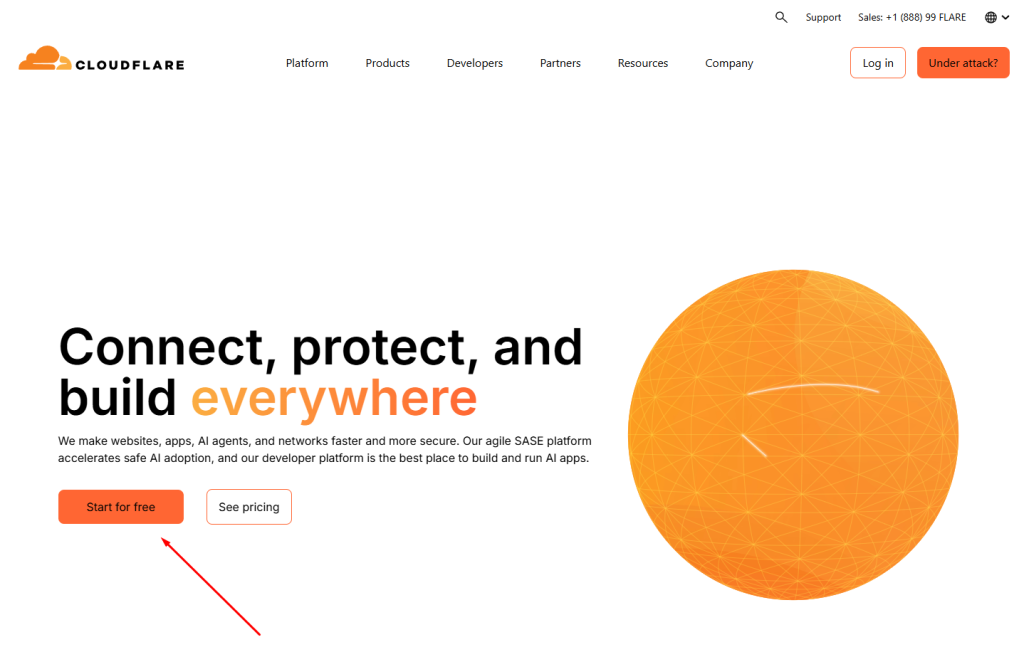
- Go to www.cloudflare.com and click Sign up / Start for free.
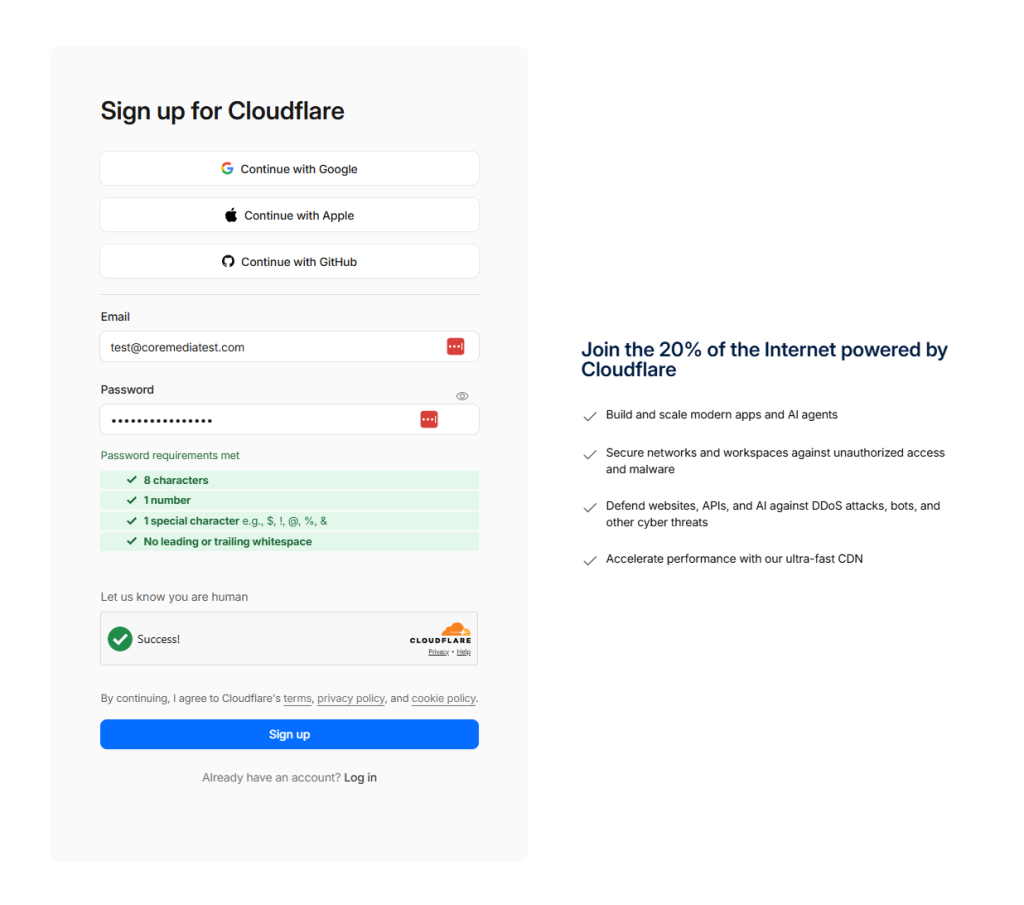
- Enter your email address and password of choice and click Sign up
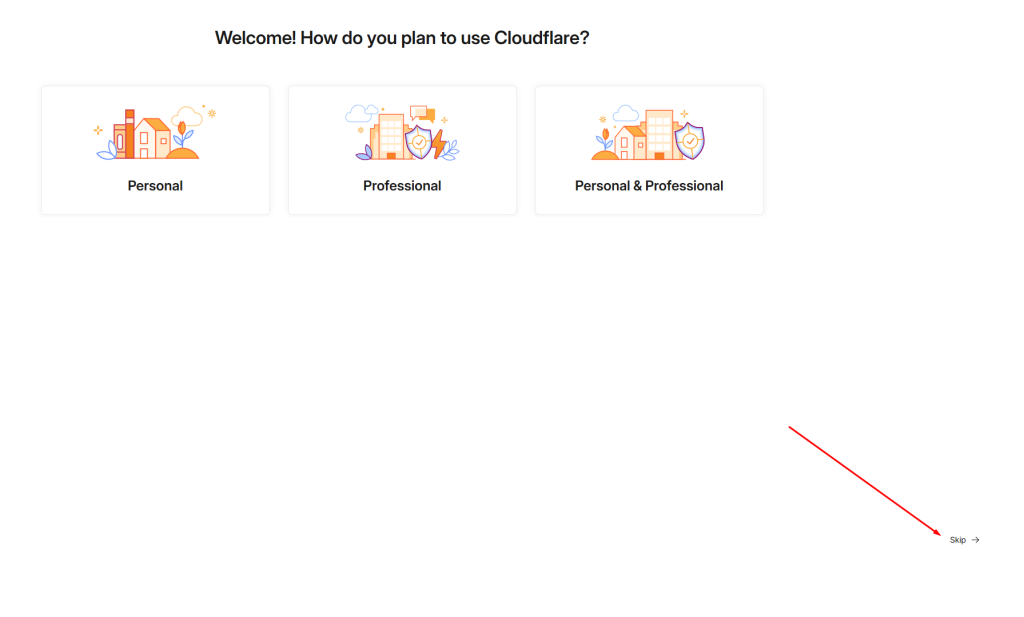
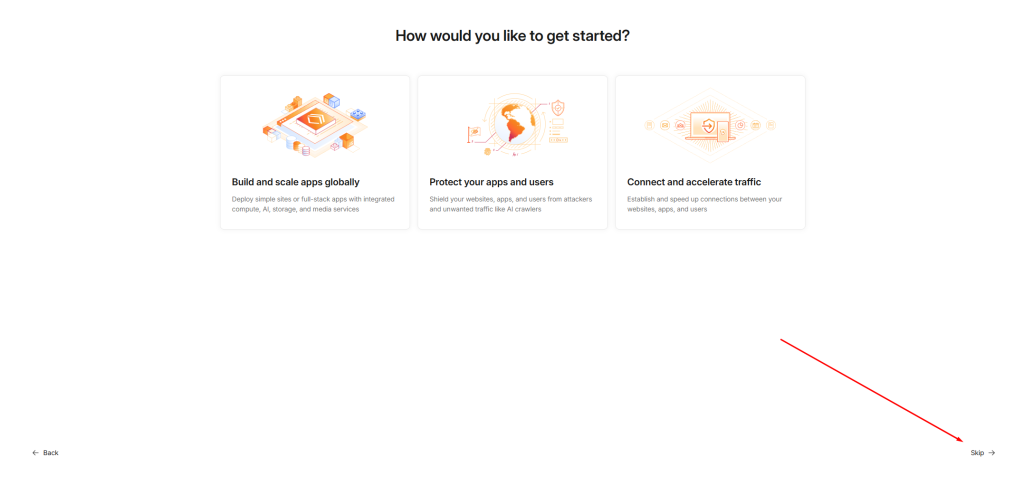
- Click Skip
- Click Skip again
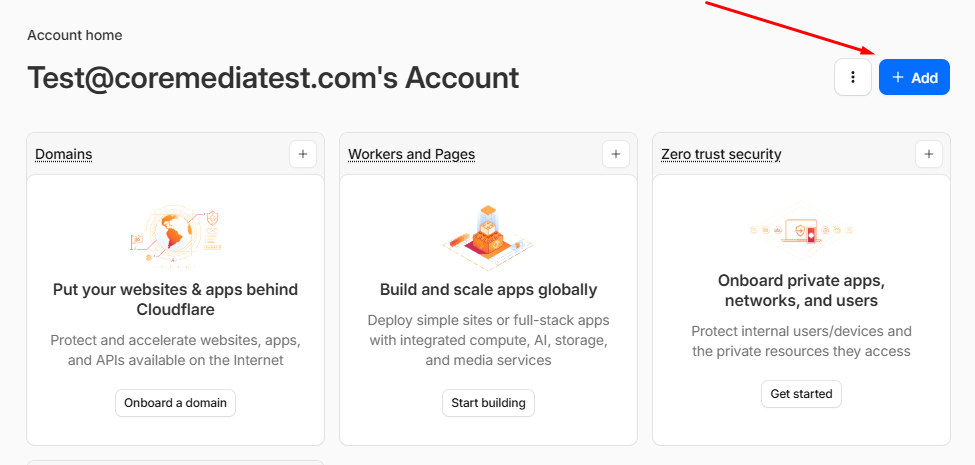
- Click Add button
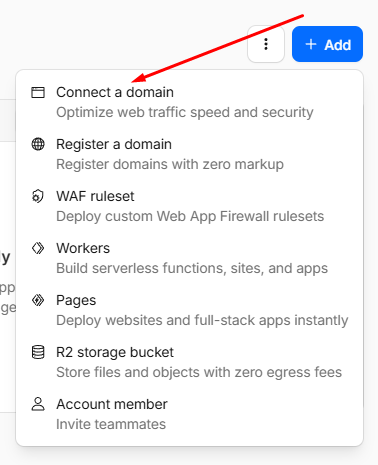
- Click Connect a domain
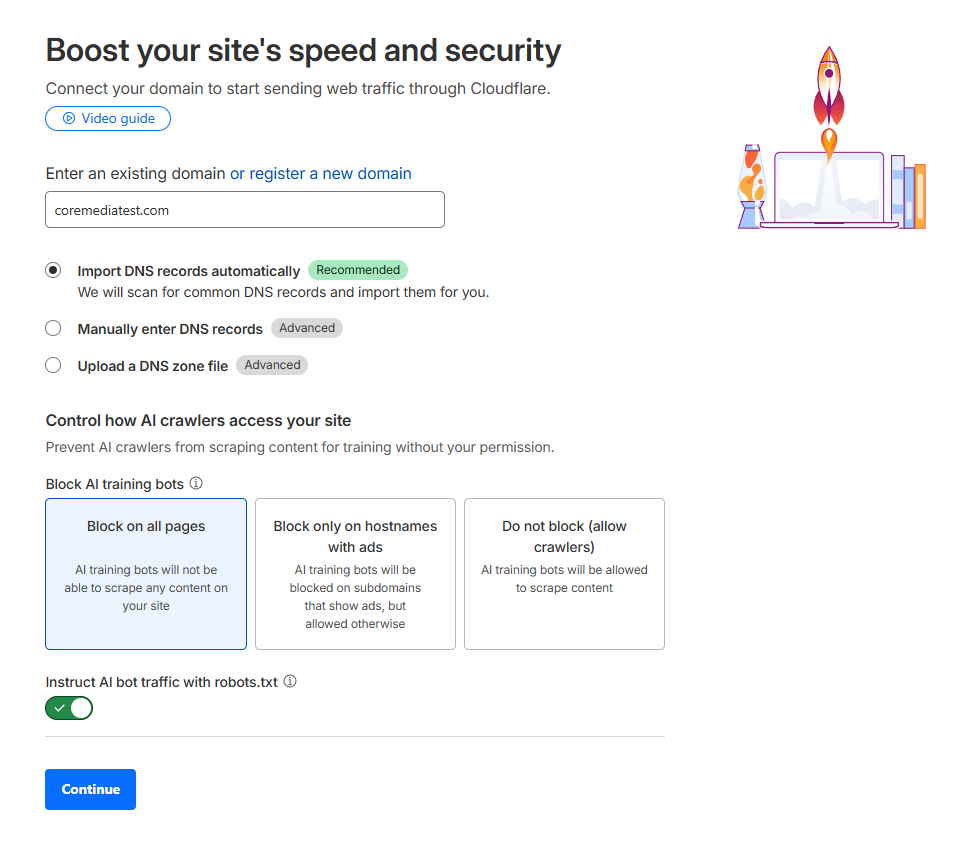
- Enter your domain name (e.g. mydomain.com) and click Continue
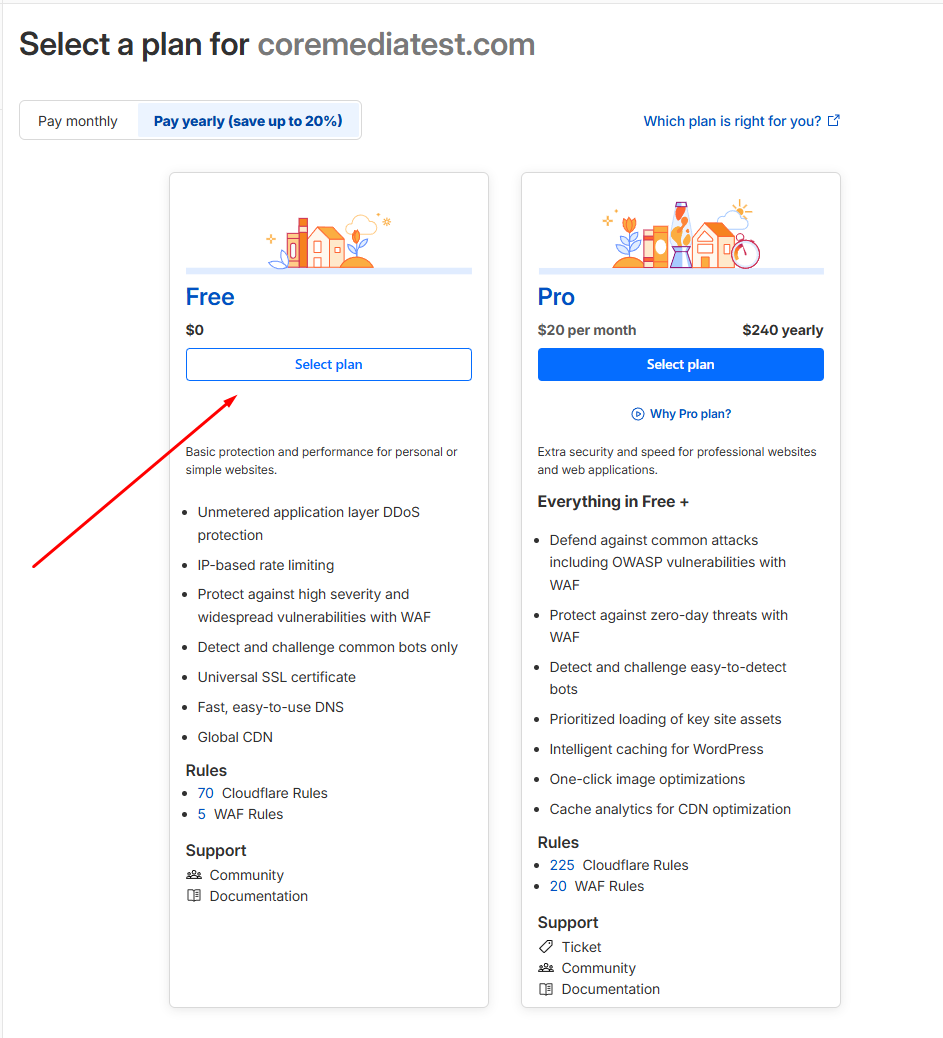
- In the “Free” section click Select plan
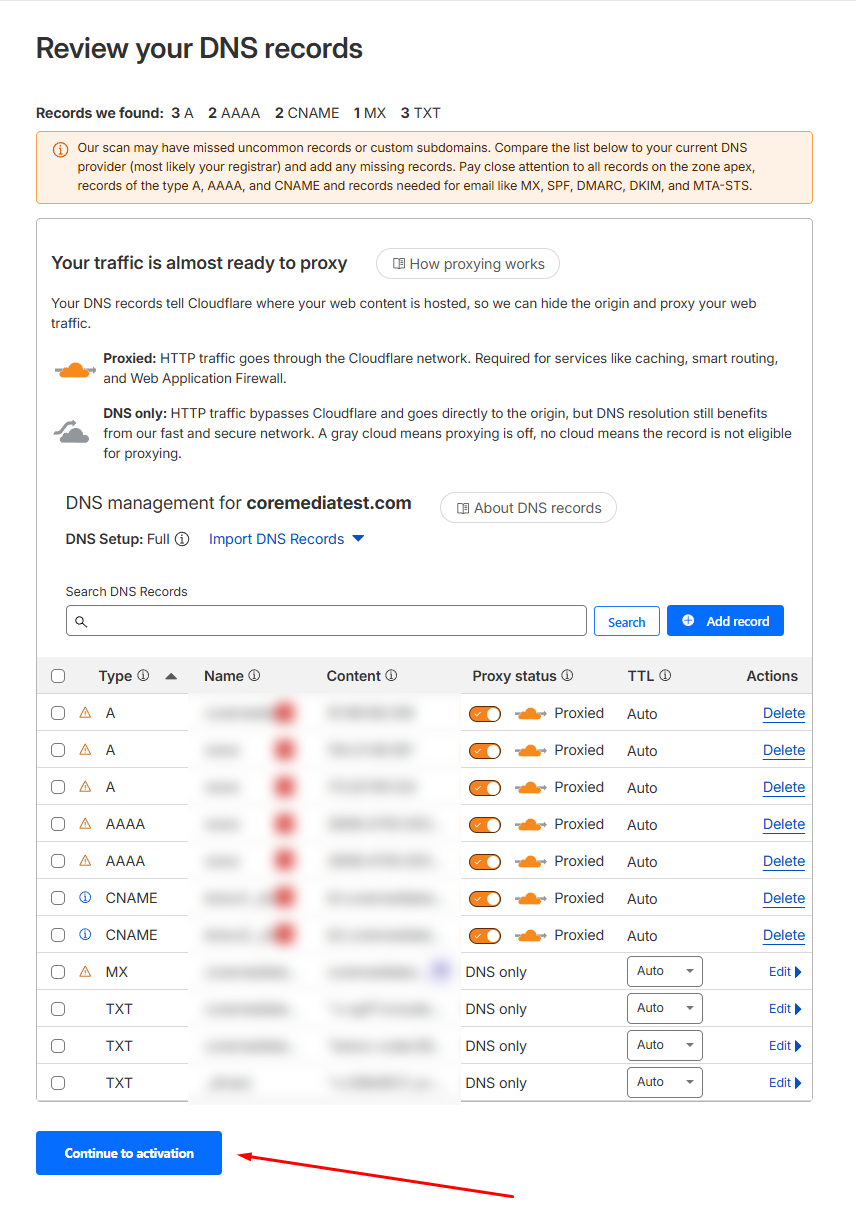
- Click Continue to activation
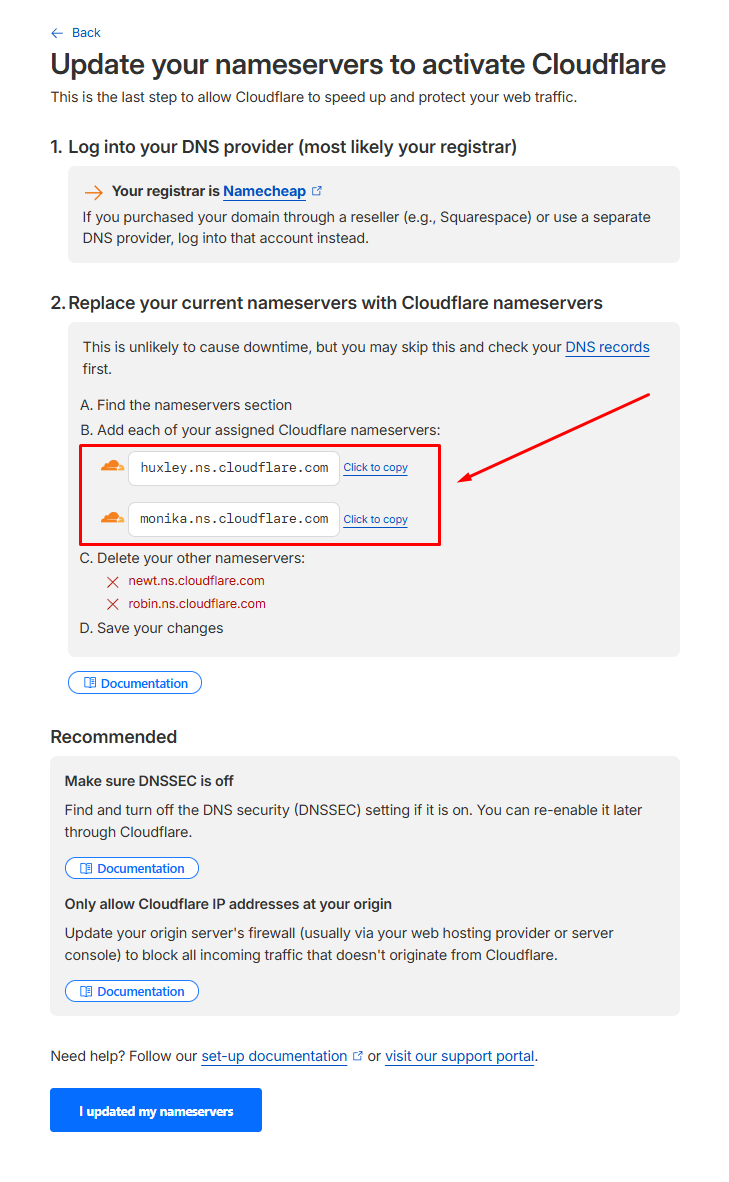
- Now the domain has been added and you can find your Cloudflare nameservers here.
Use these nameservers to point your domain name to Cloudflare and to start using Cloudflare for DNS management.